Manage models in the Lemonade App
Find and prepare models
Open Models. The left rail provides:
- All Models, Downloaded, and client-local Favorites;
- task filters for Chat, Omni, Router, Image, Audio, Music & SFX, TTS, 3D, Embed, and Classify;
- backend and model-family tag filters;
- Hugging Face and ModelScope switches for online search; and
- a model-storage meter.
The middle pane searches the local catalog and, when enabled, online catalogs. It can sort by name, size, last use, or download count and groups results under Pinned, Downloaded, and Local Catalog as applicable. Favorites are local to this client. Pinning is a server-side property for a loaded model and protects it from automatic eviction.
Select a model to open its detail panel. The header shows its state, recipe, capability, size, and source when available. The tabs provide:
- Configuration: settings for the next load or reload;
- README: model documentation; and
- Files: the files reported for the model.
For a model that is not downloaded, select Get & Load to download and load it, or Download to keep it on disk. For a downloaded model, select Load. A running model offers Unload and, when eligible, Pin. Favorite is client-local. Delete removes downloaded files or a custom model definition after confirmation.
Download and load errors appear in the detail panel. Download progress also appears in the title-bar download manager.
Configure a model before it loads
Select the model's Configuration tab (1). Load settings (2) can include context size and automatic context tuning, backend and device, typed load-time sampling fields, and additional backend CLI arguments. The controls come from the selected recipe, so not every model shows every field.
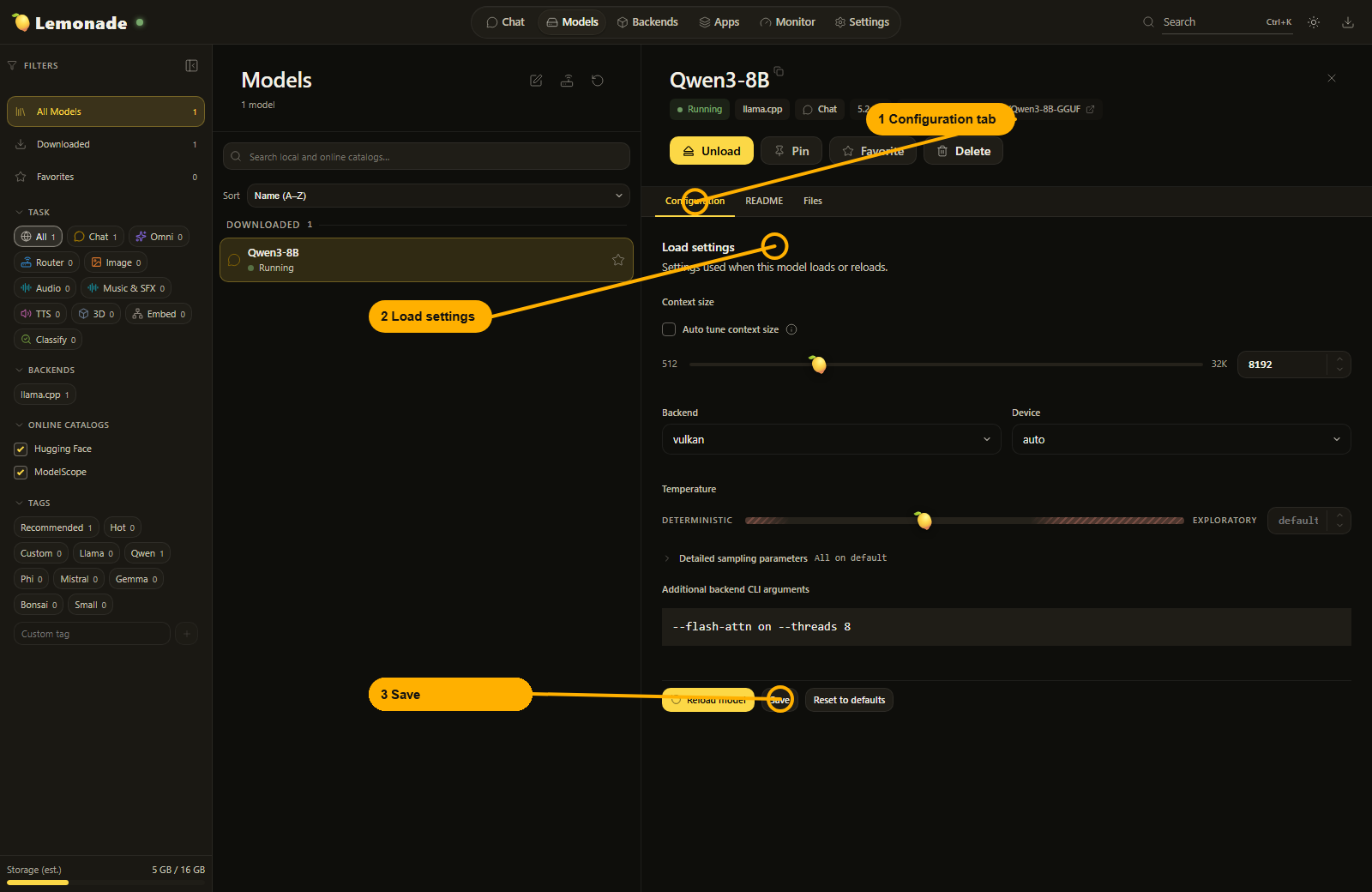
The values shown in the form are sent by Load or Get & Load, even if they have not been saved. Save is callout 3; it and the other actions at the bottom have distinct effects:
- Reload model appears only when the model is running and the shown values differ from its running values. It restarts the model with the shown values but does not save them.
- Save writes changed values to the connected server for future loads and reloads. Other clients connected to that server can observe them.
- Discard changes appears when the form differs from the saved settings. It restores those saved values without reloading.
- Reset to defaults fills the form with the defaults reported by
lemond. It does not write or reload anything. Load or Reload model uses those defaults once; Save clears the corresponding saved overrides.
These are persistent, pre-load model settings. They are not the same as the request-time controls in Chat.
Register custom models, collections, and routers
Select Open custom models in the Models toolbar to register a checkpoint that is not in the catalog. Choose the capability and a compatible recipe, enter the checkpoint and any required companion artifacts, then save. The server registers it with a user.<name> identifier.
The custom-model editor also creates an Omni Collection. Choose its planner and any compatible vision, image, transcription, or speech components. A collection remains editable after it is saved or downloaded, but is omitted from the Chat picker if a required component is no longer registered.
Use the separate Open router editor toolbar action to build a Router across registered chat models. The custom-model editor's Import and Export actions move custom model and Omni definitions as JSON; the Router editor has its own import flow.