Chat and effective settings
Use Chat
The model picker above the composer shows running models that Lemonade App can use and Lemonade's default-model shortcuts. Selecting a downloaded shortcut loads it; selecting one that is not downloaded starts its download and load. The row action can eject a running model.
Select New chat in the History rail to start another conversation. Each history row can be deleted. Conversations remain usable while another conversation streams, and navigation to another workspace does not cancel an active response.
Type a prompt and press Enter to send it; use Shift+Enter for a newline. While a response streams, the Send button becomes Stop. Message actions include:
- Edit & resend on a text user message;
- Copy and Retry on an assistant response; and
- Read aloud when a compatible TTS model is available.
The assistant response can also show reasoning, tool calls, generated media, throughput, time to first token, and token count.
The Thinking menu switches supported chat requests between reasoning and a direct answer. Logs opens a resizable live-log pane beside the conversation. The plus menu offers:
- Add files for image or audio attachments supported by the selected model; images can also be pasted or dropped into the composer; and
- Tools to enable built-in Lemonade tools and choose tools from available external MCP servers for that chat.
Attachment types and limits depend on the model. Chat can also present model-specific composers for image generation and editing, transcription, music and sound effects, TTS and voice cloning, and 3D generation. Embedding, reranking, and classification models are managed in Models but are not selectable in the Chat composer.
Chat history is client-side and is saved in this browser by default. You can disable it under Settings > Chat > Save chat history in this browser; attached media is never persisted.
Inspect Effective settings
Open Effective settings for the selected concrete model. The dialog is separate from Models > Configuration and does not make persistent model changes.
- Settings by source shows known resolved values and where each came from. Sources can include runtime resolution, direct configuration, a recipe default, optimization, or the Chat plus menu.
- Chat sampling stores request-time values for this model and GUI client.
- Effective load command is the authoritative command reported by the running server.
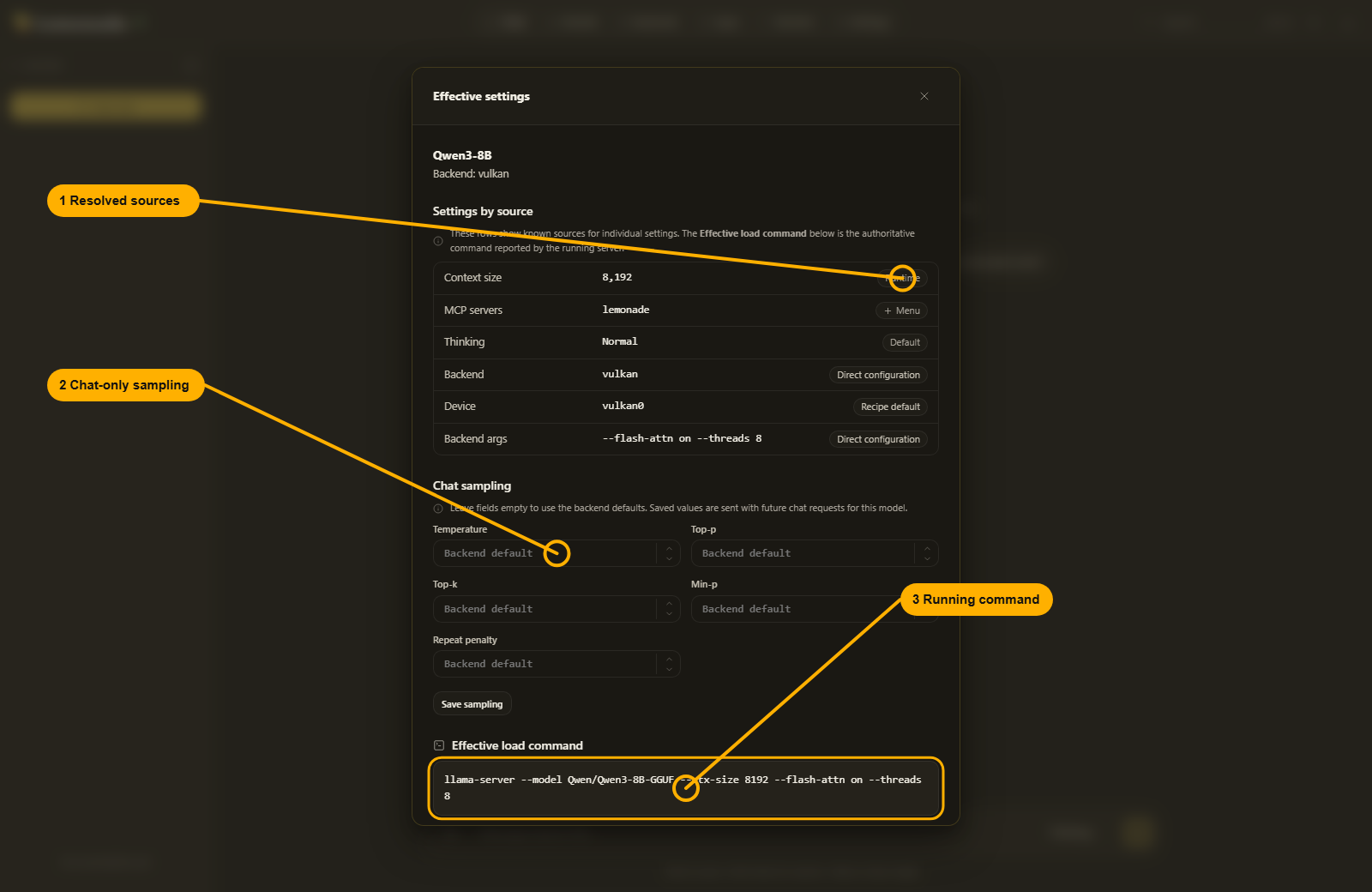
Select Save sampling to store temperature, top-p, top-k, min-p, and repeat penalty for future chat requests from this client. An empty field omits that parameter so the backend uses its default. Saving sampling does not reload the model and does not change the load-time sampling arguments under Models > Configuration.
The effective command is available only while the model is loaded. It is the exact command for the current backend process, so a pending configuration change does not appear there until the model reloads.
Apply a session-only backend override
For a supported backend, the bottom of Effective settings exposes a locked raw argument editor:
- Review the running command (1).
- Select I know what I am doing (2) to unlock the editor.
- Edit the session-only argument string (3).
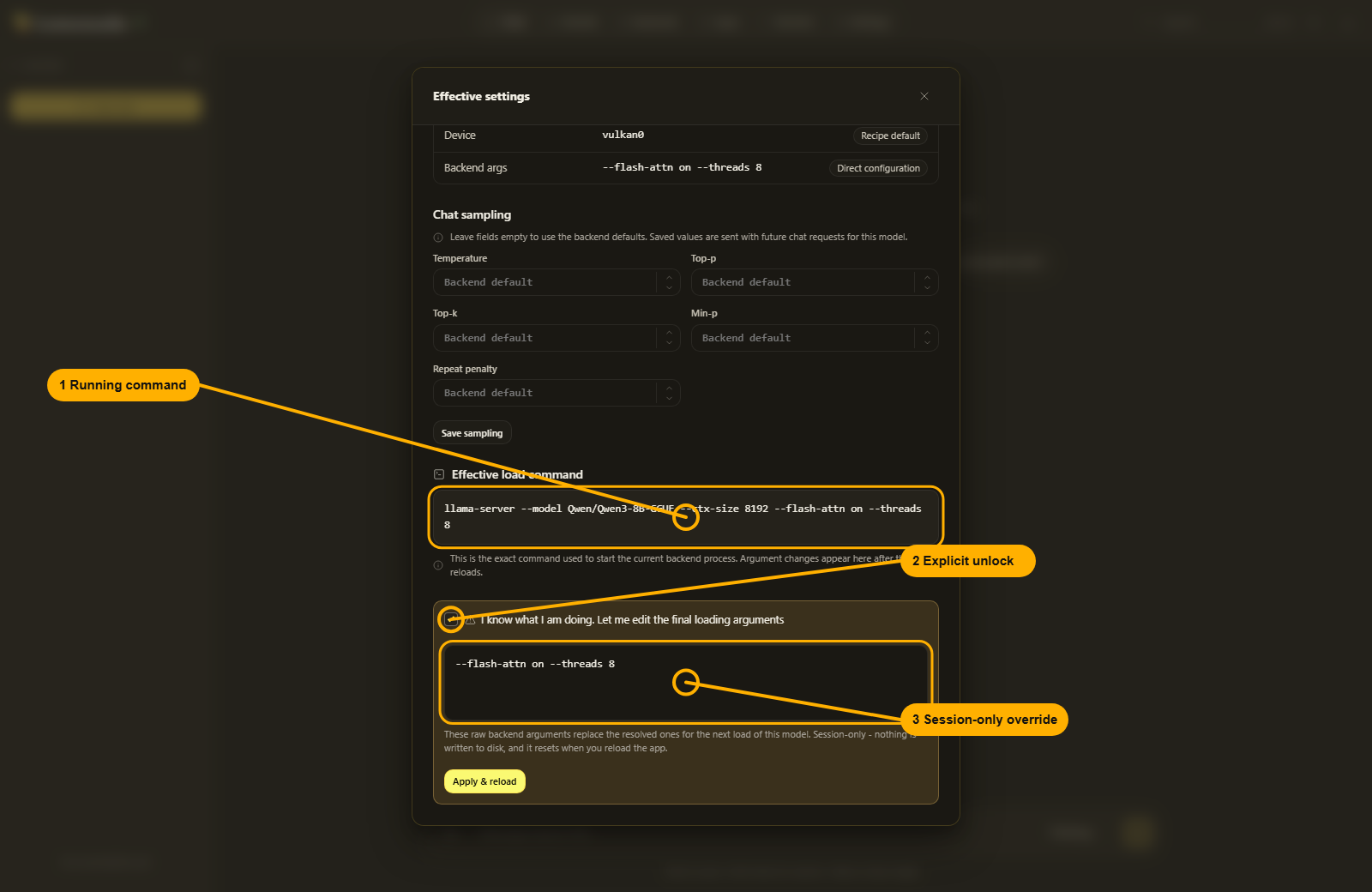
The buttons depend on runtime state:
- Apply & reload stores the override in this app session and immediately reloads a running model with it.
- Apply for next load stores the override for the next load when the model is not running.
- Reset override clears the session override. If the model is running, it also reloads with the normally resolved settings.
The raw override replaces the resolved backend argument string for that load. It is never written to disk and disappears when the app reloads. Use Models > Configuration for changes that should persist on the server.
Effective settings is not shown for image models or collection wrappers.