Lemonade App
The Lemonade App is Lemonade's graphical client for finding models, configuring inference, and using a Lemonade Server. The desktop and browser builds share the same React interface. The server owns model files, loaded models, backends, and persistent load configuration; each GUI client owns its connection, layout, chat history, and chat preferences.
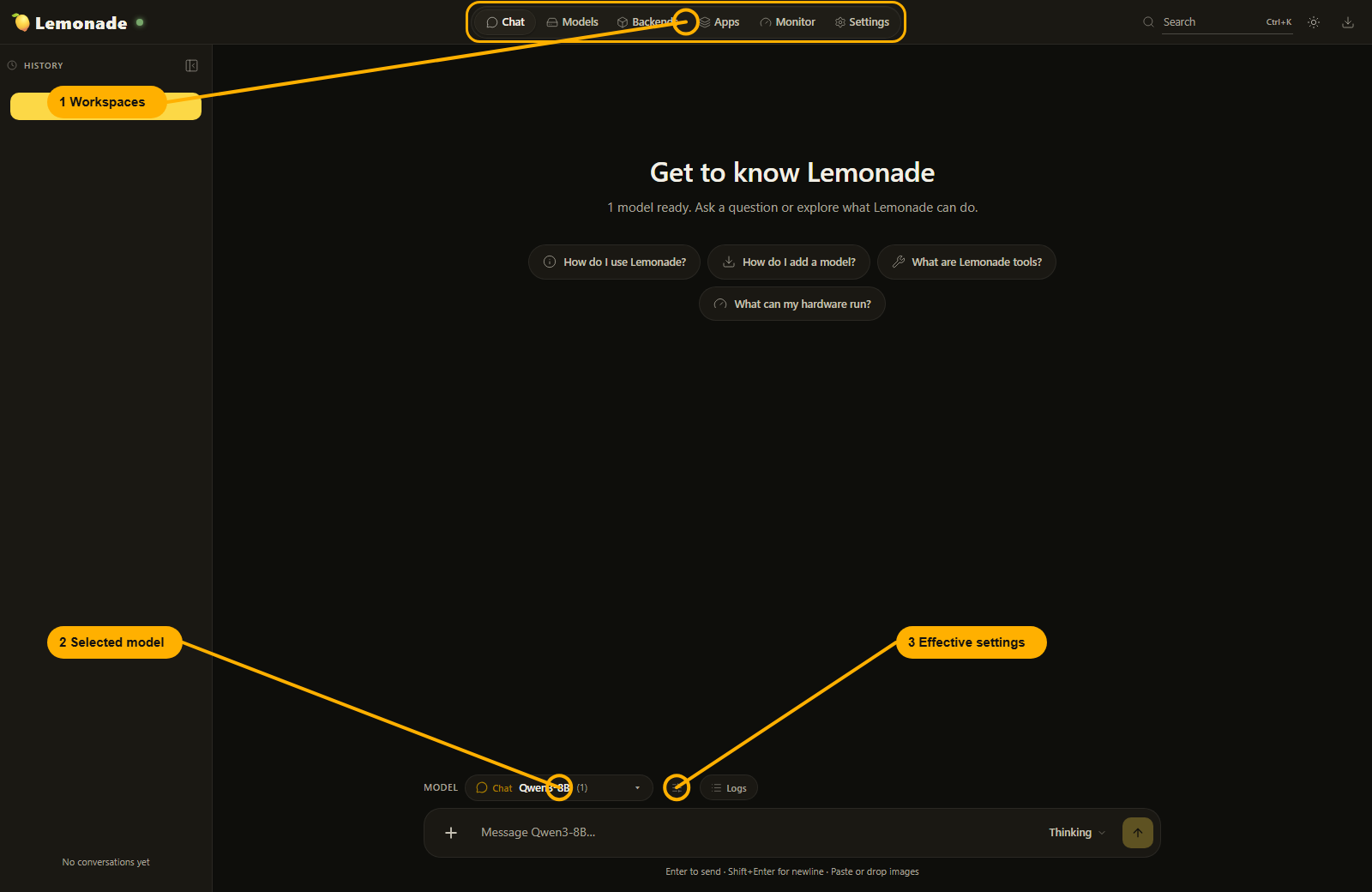
These screenshots use the current Lemonade App renderer. Numbered yellow callouts identify the controls described in the text.
The Chat view shows the workspace navigation (1), selected model (2), and Effective settings button (3).
For source builds, see the desktop app developer guide.
Learn about models, Chat and effective settings, audio and 3D, and Backends, Apps, Monitor, and Settings.
Open the app
When building from source, configure and build the repository first. Start the built Lemonade Server, then launch Lemonade App or open the browser build at the server's URL.
- Windows source build: start the built
lemond.exe, then launch the builtlemonade-app.exe. An installed build can instead be opened from the Lemonade tray menu; its server continues running when the app closes. - macOS source build: start the built
lemond, then launch the builtlemonade-app.app. An installed build can instead be opened from Applications. - Linux source build or browser: start the built
lemond, then openhttp://127.0.0.1:13305. The GUI is served at/app;/web-appremains available as a backward-compatible URL.
The desktop app uses a saved endpoint when one exists and can discover a local server through Lemonade's UDP beacon. For a browser build served by lemond, use the server origin.
The status dot beside the Lemonade name is green when the configured server is reachable. If it is gray, open Settings > Server and check the endpoint and API key.
Navigate the app
The title bar is available from every workspace:
| Control | Purpose |
|---|---|
| Chat | Converse with chat models and use supported media models. |
| Models | Search, download, load, inspect, and configure models. |
| Backends | Install and update inference runtimes. |
| Apps | Browse applications that can use Lemonade. |
| Monitor | Inspect performance, request telemetry, and server logs. |
| Settings | Configure the connection, client preferences, and server settings. |
| Search | Search pages, models, backends, apps, Settings sections, and Monitor sections. |
| Theme | Switch between the light and dark themes. |
| Downloads | Open the model and backend download manager. A badge shows active downloads. |
Select Search or press Ctrl+K (Cmd+K on macOS). Use the arrow keys to move through results, Enter to open one, and Escape to close the results. Selecting a model opens its Models detail panel; other results open the relevant workspace or section.
Most workspaces have a collapsible left rail. On a narrow window it becomes a menu or bottom sheet.
Connect to a server
Open Settings > Server, enter the full http:// or https:// server URL, optionally enter an API key, and select Connect. Connection errors include the endpoint that failed.
The endpoint and API key belong to this GUI client, not to lemond. Select Remember API key to keep the key across app restarts: browser clients save it in the current origin's localStorage, while the desktop app uses native app settings. Without this option, the key remains session-only. Remember browser keys only on trusted devices, since scripts running on the same origin can access browser storage. Clear permitted local data clears this client's browser data and saved connection settings; it does not delete server models or configuration.
For a remote server, prefer HTTPS and configure the server's allowed browser origins when using the web build.
Troubleshooting and limitations
- The status dot is not green: verify the full URL and API key under Settings > Server, then select Connect. For a browser client, also check the server's allowed origins.
- A model cannot load: confirm that its files are downloaded and its required backend is installed. Check the model detail error and Monitor > Logs.
- A backend is missing: enable Show unsupported backends to inspect compatibility. Unsupported hardware does not become compatible by showing the entry.
- The catalog is empty: reconnect, clear restrictive filters, and enable an online catalog for remote search.
- An attachment or mode is unavailable: the selected model does not advertise that input or capability. Choose a compatible loaded model or Omni Collection.
- A setting did not persist: use Save in Models > Configuration for persistent load values. Chat sampling and raw Effective settings overrides are client-side; raw overrides also end when the app reloads.
- Inference is slow or fails: inspect Monitor > Telemetry and Monitor > Logs, then compare the running command in Effective settings with the persistent model configuration.
Report an app issue
For a problem specific to Lemonade App, use the repository's issue forms and choose Bug Report. Include:
- OS and Lemonade version (from the About dialog or
lemonade --version); - desktop app or browser UI, and the commit hash for a source build;
- steps to reproduce;
- expected and actual behavior;
- relevant logs or screenshots; and
- whether the issue also occurs with the other GUI client on the same server, when that comparison is practical.
Select Desktop App / UI as the issue component. Use the regular issue process for unrelated server, backend, model, or API issues.
For server behavior, see server concepts, configuration, and the API reference.